Decision Traces from Google Workspace
Time: ~20-30 minutes | Level: Intermediate | Prerequisites: Python 3.11+, Node.js 18+, Neo4j, Google Cloud project with OAuth credentials
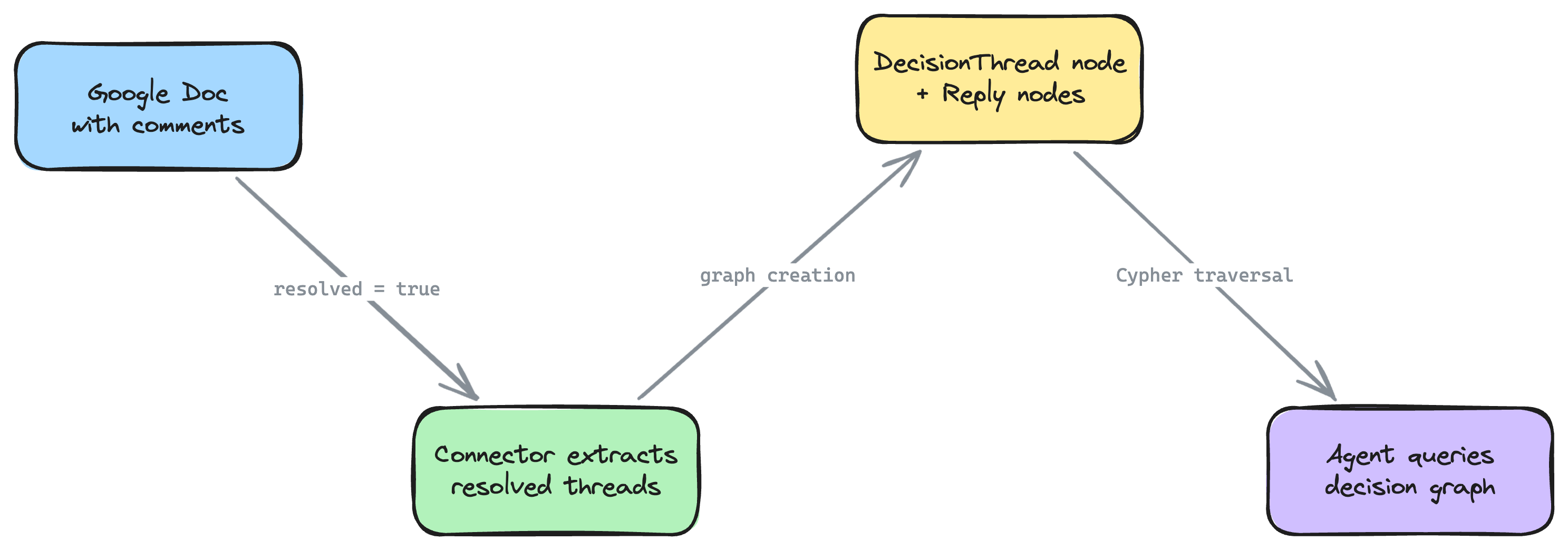
This tutorial walks you through importing your team's Google Workspace data -- Drive files, comment threads, revision history, calendar events, and email metadata -- into a Neo4j context graph. The defining feature is decision trace extraction: resolved comment threads in Google Docs become first-class decision nodes in your graph, capturing the question, deliberation, resolution, and participants.
By the end, you'll have an AI agent that can answer questions like "Why did we choose Stripe over Adyen?" by traversing the decision traces embedded in your team's collaborative documents.
What you'll build
A full-stack application that:
- Imports your Google Drive files, folders, and permissions into Neo4j
- Extracts resolved comment threads from Google Docs as decision trace nodes -- capturing who asked, who replied, what was decided, and when
- Maps revision history to show who changed what and when
- Optionally imports Calendar events and Gmail thread metadata for full decision context
- Provides 10 decision-focused agent tools for querying your decision graph
- Connects Google Workspace decisions to Linear issues when both connectors are active
Agent tools
| Tool | Description |
|---|---|
find_decisions | Search resolved comment threads by keyword, document, or person |
decision_context | Find all decision threads, meetings, and emails about a topic |
who_decided | Find people involved in decisions, weighted by participation |
document_timeline | Complete document history: revisions, comments, decisions, meetings |
open_questions | Unresolved comment threads, optionally filtered by document |
meeting_decisions | Documents discussed and decisions made around a meeting |
knowledge_contributors | Top contributors by revisions, decisions, and meeting attendance |
trace_decision_to_source | Trace a claim back through the decision chain to its source |
stale_documents | Documents with open threads not updated recently |
cross_reference | Find all Google Workspace context for a Linear issue |
Prerequisites
Before you begin, make sure you have:
- Python 3.11+ -- check with
python3 --version - Node.js 18+ -- check with
node --version - Neo4j -- one of:
- Neo4j Aura (free cloud instance)
- Docker:
docker run -p 7474:7474 -p 7687:7687 -e NEO4J_AUTH=neo4j/password neo4j:5 - neo4j-local:
npx @johnymontana/neo4j-local
- uv (recommended) -- install with
curl -LsSf https://astral.sh/uv/install.sh | sh - Google Cloud project with OAuth credentials -- see Step 1 below
- An LLM API key --
ANTHROPIC_API_KEY(for most frameworks) orOPENAI_API_KEY/GOOGLE_API_KEYdepending on your framework choice
If you see requires-python >= 3.11 errors during installation, your active Python is too old. Common fixes:
- pyenv:
pyenv install 3.12 && pyenv local 3.12 - Homebrew (macOS):
brew install python@3.12 - Ubuntu (deadsnakes PPA):
sudo add-apt-repository ppa:deadsnakes/ppa && sudo apt install python3.12 - uv:
uv python install 3.12
Check with python3 --version (not just python --version, which may point to an older version on some systems).
Step 1: Set Up Google Cloud OAuth Credentials (~5 min)
The connector uses OAuth 2.0 to access your Google Workspace data with read-only permissions. You'll need to create OAuth credentials in the Google Cloud Console.
- Go to the Google Cloud Console and create a new project (or select an existing one).
- Navigate to APIs & Services > Library and enable these APIs:
- Google Drive API
- Drive Activity API (for activity tracking)
- Optionally: Google Calendar API and Gmail API (if you plan to import those)
- Navigate to APIs & Services > Credentials.
- Click Create Credentials > OAuth client ID.
- Select Desktop app as the application type.
- Copy the Client ID and Client Secret -- you'll use these in the next step.
If your Google Workspace has domain-wide restrictions on third-party apps, you may need an admin to approve the OAuth consent screen. For personal Google accounts, this step is automatic.
Step 2: Scaffold the Project (~2 min)
Run the CLI with the --connector google-workspace flag:
uvx create-context-graph my-decisions-app \
  --domain software-engineering \
  --framework pydanticai \
  --connector google-workspace \
  --gws-folder-id 1aBcDeFgHiJkLmNoPqRsT
Replace the folder ID with your target Drive folder. You can find this in the URL when you open the folder in Google Drive: https://drive.google.com/drive/folders/1aBcDeFgHiJkLmNoPqRsT.
Targeting a specific folder keeps the graph focused and manageable. For a first import, try your team's PRD or design docs folder -- these tend to have the richest comment threads.
The CLI will open your browser for the Google OAuth consent flow. After granting read-only access, the import begins automatically:
Importing data from connected services...
  Connecting to Google Workspace...
  Fetching data from Google Workspace...
  ✓ Google Workspace: 156 entities, 42 documents
The OAuth token is saved to .gws-token.json in your project directory (included in .gitignore). You do not need to store the Client ID or Secret in .env -- the CLI handles the OAuth flow automatically during scaffold.
Customizing what gets imported
The connector has several flags to control scope:
uvx create-context-graph my-decisions-app \
  --domain software-engineering \
  --framework pydanticai \
  --connector google-workspace \
  --gws-folder-id 1aBcDeFg \
  --gws-include-calendar \
  --gws-include-gmail \
  --gws-since 2026-01-01 \
  --gws-mime-types docs,slides \
  --gws-max-files 200
| Flag | Default | Description |
|---|---|---|
--gws-folder-id | My Drive root | Drive folder ID to scope the import |
--gws-include-comments / --gws-no-comments | on | Import comment threads from Docs/Sheets/Slides |
--gws-include-revisions / --gws-no-revisions | on | Import revision history metadata |
--gws-include-activity / --gws-no-activity | on | Import Drive Activity events |
--gws-include-calendar | off | Import Calendar events (requires Calendar API scope) |
--gws-include-gmail | off | Import Gmail thread metadata (requires Gmail API scope) |
--gws-since | 90 days ago | Only import activity after this ISO date |
--gws-mime-types | docs,sheets,slides | Comma-separated MIME types to include |
--gws-max-files | 500 | Maximum number of files to import |
If you use --gws-include-calendar or --gws-include-gmail, you must first enable the corresponding APIs in Google Cloud Console (Step 1, substep 2). If these APIs are not enabled, the import will skip those data sources with a warning.
Step 3: Configure and Seed (~3 min)
Navigate to your project:
cd my-decisions-app
Configure your environment by copying the example file and editing it:
cp .env.example .env
Edit .env with your credentials:
# .env
NEO4J_URI=neo4j://localhost:7687
NEO4J_USERNAME=neo4j
NEO4J_PASSWORD=password
ANTHROPIC_API_KEY=sk-ant-...
If you're using Neo4j Aura, set NEO4J_URI=neo4j+s://xxxxxxxx.databases.neo4j.io with the connection URI from your Aura console.
Install dependencies for both backend and frontend:
make install
Verify your Neo4j connection (optional but recommended):
make test-connection
Seed the data into Neo4j:
make seed
You should see output similar to:
Creating schema constraints and indexes...
Loading fixture data...
  Created 156 entities across 9 node labels
  Created 412 relationships across 17 relationship types
  Created 42 documents with MENTIONS links
  Created 8 decision traces
Done. Knowledge graph ready.
Step 4: Start the Application (~1 min)
The application has two components: a FastAPI backend (port 8000) and a Next.js frontend (port 3000).
Using make start (recommended):
make start
This runs both the backend and frontend concurrently. You should see:
Starting backend on http://localhost:8000...
Starting frontend on http://localhost:3000...
Alternative: two separate terminals (useful for debugging):
# Terminal 1: Backend
cd backend && make dev

# Terminal 2: Frontend
cd frontend && npm run dev
Once both are running, open http://localhost:3000 in your browser.
Step 5: Explore Your Decision Graph (~10 min)
Schema view
When the app loads, the graph schema view shows the entity types imported from Google Workspace:
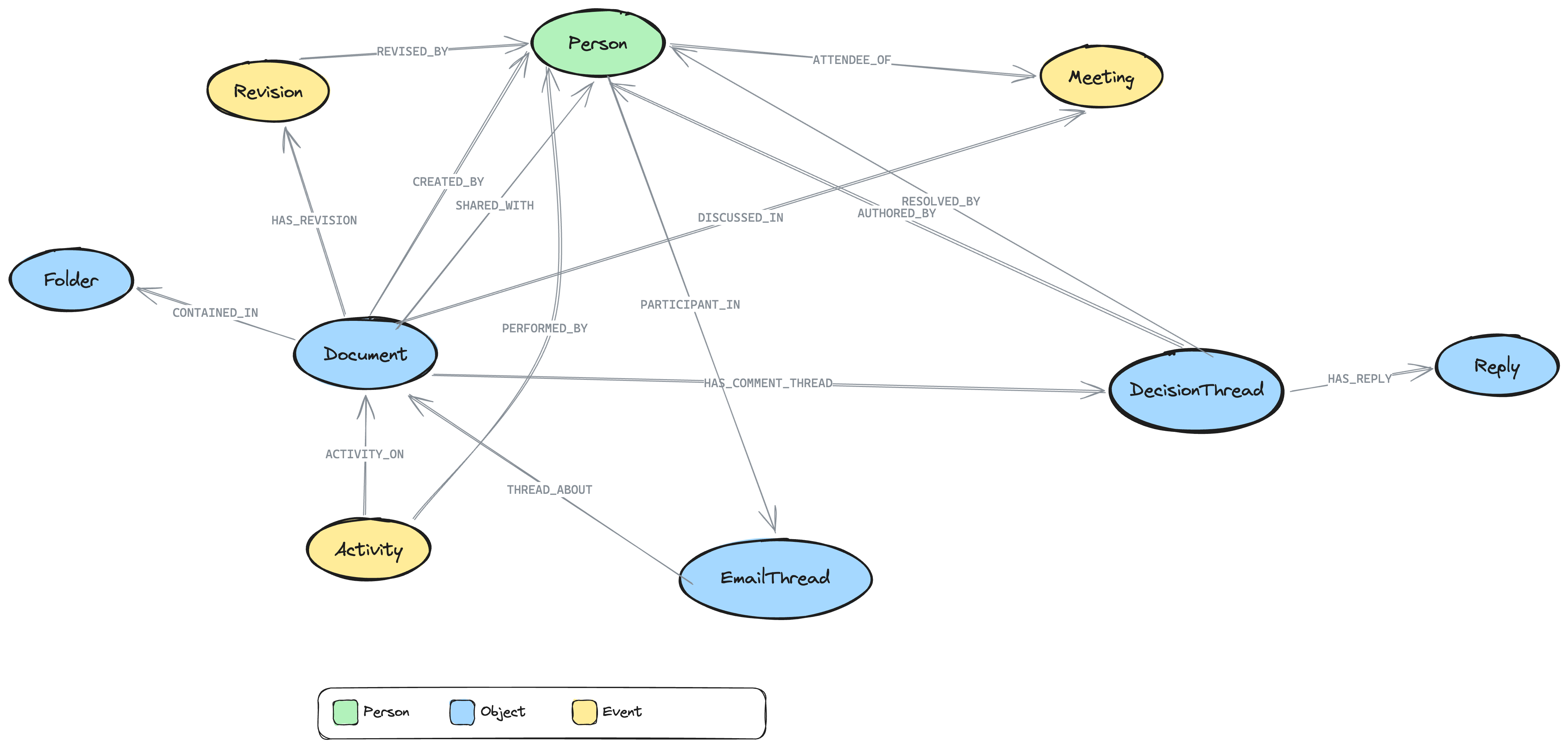
- Document nodes (your Google Docs, Sheets, and Slides) connected to Person nodes via
CREATED_BYandSHARED_WITH - DecisionThread nodes linked to Documents via
HAS_COMMENT_THREAD-- these are the extracted comment threads - Reply nodes connected to DecisionThreads via
HAS_REPLY-- the deliberation chain - Revision nodes showing document evolution via
HAS_REVISIONandREVISED_BY - Activity nodes tracking actions (edits, shares, renames) via
ACTIVITY_ONandPERFORMED_BY - Folder nodes providing hierarchy via
CONTAINED_IN - Meeting nodes (if calendar was enabled) linked to Documents via
DISCUSSED_INand to Persons viaATTENDEE_OF - EmailThread nodes (if Gmail was enabled) linked to Documents via
THREAD_ABOUT
Double-click any schema node to load actual instances.
Decision threads -- the core concept
The key innovation is the DecisionThread node. When someone resolves a comment thread in Google Docs, the connector captures it as a graph node with:
- content: The original question or proposal ("Should we use SAML or OIDC for SSO?")
- quotedContent: The document text the comment is anchored to
- resolution: The final answer (from the last reply before resolution)
- resolved:
truefor decisions made,falsefor open questions - participantCount: How many people contributed to the discussion
Each DecisionThread is linked to:
- The Document it appears in (
HAS_COMMENT_THREAD) - The Person who started it (
AUTHORED_BY) - The Person who resolved it (
RESOLVED_BY) - Individual Reply nodes capturing the deliberation (
HAS_REPLY)
Resolved threads also generate decision traces (the same format used by neo4j-agent-memory) with thought/action/observation steps for each reply in the thread.
Ask the agent about decisions
Try these questions in the chat panel:
- "What decisions have been made about authentication?" -- Searches DecisionThread nodes by keyword
- "Who was involved in decisions about the caching strategy?" -- Finds decision participants
- "Are there any open questions on the API design doc?" -- Finds unresolved comment threads
- "What happened in last Tuesday's platform meeting?" -- Finds meeting context, linked documents, and decisions
- "Show me the timeline of the payments PRD" -- Revision history, comment threads, and activity
- "Who are the top contributors to the architecture docs?" -- Combines revision, comment, and meeting data
- "Trace back the decision to use Redis" -- Follows the decision chain: thread -> document -> meeting
- "What documents haven't been updated in 30 days but still have open questions?" -- Finds stale docs with pending decisions
- "What's everything related to ENG-456?" -- Cross-references Linear issues (if Linear connector is also active)
Graph visualization
As you chat with the agent, the graph visualization updates in real-time showing the queried nodes and relationships:
- Double-click a DecisionThread node to see its replies and participants
- Double-click a Document to see its comment threads, revisions, and activity
- Click any node to inspect its properties in the detail panel
- Use the "Ask about this" button to query a specific entity
Understanding the Graph Schema
The Google Workspace connector maps your data to the POLE+O entity model used by neo4j-agent-memory. POLE+O categorizes every entity as one of five types: Person, Organization (teams, companies), Location, Event (time-bounded occurrences), or Object (everything else). This classification enables cross-domain queries when combining multiple connectors.
Entity types
| Google Workspace Concept | Graph Label | POLE Type | Key Properties |
|---|---|---|---|
| File (Doc/Sheet/Slide) | Document | Object | name, mimeType, driveId, webViewLink, createdTime, modifiedTime |
| Folder | Folder | Object | name, driveId, parentId |
| User | Person | Person | displayName, emailAddress |
| Comment thread | DecisionThread | Object | content, resolved, resolution, quotedContent, participantCount |
| Comment reply | Reply | Object | content, createdTime |
| Revision | Revision | Event | revisionId, modifiedTime |
| Drive action | Activity | Event | actionType, timestamp, targetName |
| Calendar event | Meeting | Event | summary, startTime, endTime, attendeeCount |
| Email thread | EmailThread | Object | subject, messageCount, participantEmails |
Relationship types
| Relationship | From | To | Meaning |
|---|---|---|---|
HAS_COMMENT_THREAD | Document | DecisionThread | Comment thread on a document |
HAS_REPLY | DecisionThread | Reply | Reply in a discussion |
AUTHORED_BY | DecisionThread/Reply | Person | Who wrote the comment |
RESOLVED_BY | DecisionThread | Person | Who resolved the thread (made the decision) |
HAS_REVISION | Document | Revision | Document edit history |
REVISED_BY | Revision | Person | Who made the edit |
ACTIVITY_ON | Activity | Document | Action performed on a file |
PERFORMED_BY | Activity | Person | Who performed the action |
CONTAINED_IN | Document | Folder | Folder hierarchy |
CREATED_BY | Document | Person | File owner |
SHARED_WITH | Document | Person | File permission |
ATTENDEE_OF | Person | Meeting | Meeting attendee |
ORGANIZED_BY | Meeting | Person | Meeting organizer |
DISCUSSED_IN | Document | Meeting | Doc linked from event |
PARTICIPANT_IN | Person | EmailThread | Email participant |
THREAD_ABOUT | EmailThread | Document | Email references a doc |
RELATES_TO_ISSUE | DecisionThread/Document | Issue | Cross-connector: references a Linear issue |
Combining with Linear for the Full Decision Lifecycle
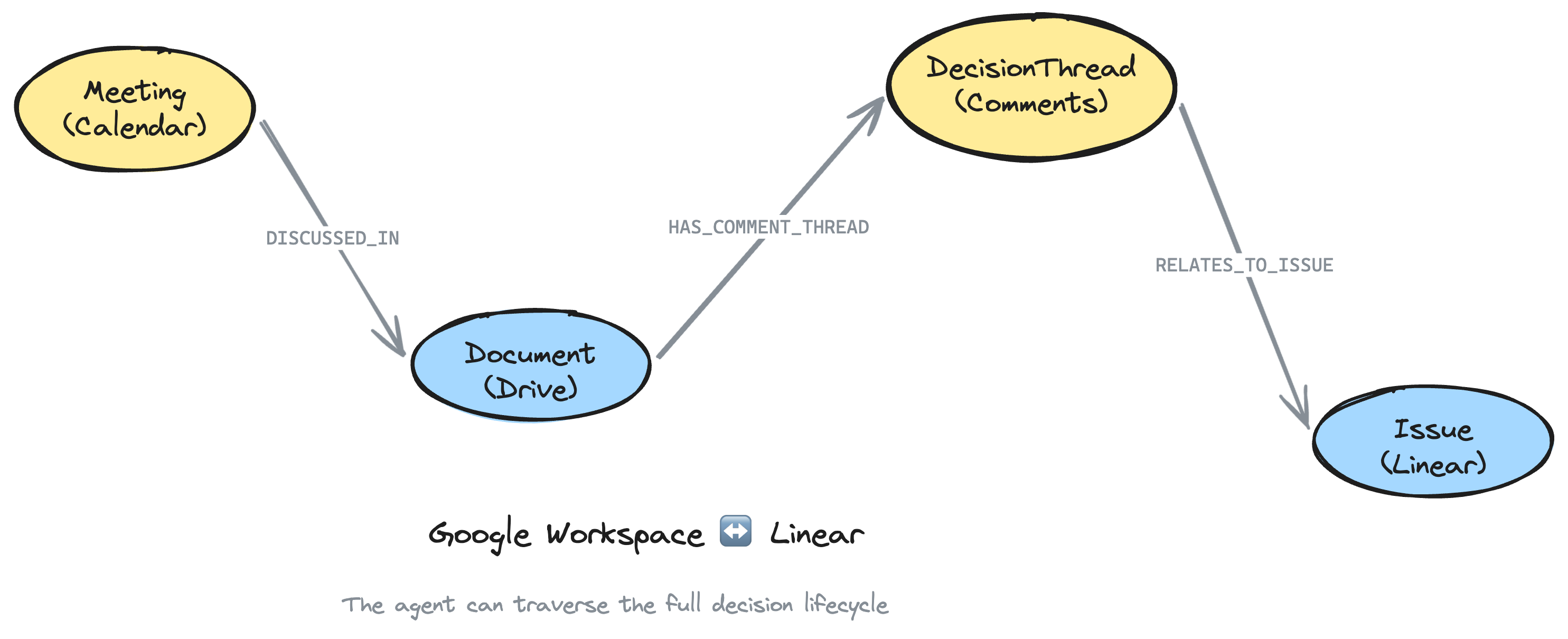
The real power emerges when you combine Google Workspace with the Linear connector. Together, they create a complete decision lifecycle graph:
You don't need to have completed the Linear tutorial first. Both connectors run in the same scaffold command. However, the cross_reference tool and RELATES_TO_ISSUE relationships only work if your Google Docs reference Linear issue identifiers (like ENG-456).
uvx create-context-graph my-full-context-app \
  --domain software-engineering \
  --framework pydanticai \
  --connector google-workspace \
  --connector linear \
  --gws-folder-id 1aBcDeFg \
  --gws-include-calendar \
  --linear-api-key lin_api_xxxxx
Now the agent can traverse the full chain:
- Meeting (Calendar): "Platform team sync" where caching was discussed
- Document (Drive): "Caching Strategy PRD" that was on the agenda
- DecisionThread (Comments): "Should we use Redis?" resolved with "Yes, agreed"
- Issue (Linear): ENG-456 implementing the caching layer
The connector automatically detects Linear issue references (like ENG-456) in comment bodies, document names, email subjects, and meeting descriptions, and creates RELATES_TO_ISSUE relationships to link the decision context to the execution context.
Try asking the agent:
- "What decisions were made about ENG-456?" -- Traverses from the Linear issue to Google Docs decisions
- "Show me everything related to the API redesign" -- Finds Linear issues, Docs, comment threads, meetings, and emails
- "What meetings led to the decision to use microservices?" -- Traces from DecisionThread back to Meeting via Document
Example Cypher Queries
Run these in Neo4j Browser (http://localhost:7474) or via the agent's run_cypher tool:
Find all resolved decisions about a topic
MATCH (dt:DecisionThread {resolved: true})-[:HAS_COMMENT_THREAD]-(doc:Document)
WHERE toLower(dt.content) CONTAINS 'caching'
   OR toLower(doc.name) CONTAINS 'caching'
OPTIONAL MATCH (dt)-[:AUTHORED_BY]->(author:Person)
OPTIONAL MATCH (dt)-[:RESOLVED_BY]->(resolver:Person)
RETURN dt.content AS question, dt.resolution AS decision,
       author.name AS raised_by, resolver.name AS decided_by,
       doc.name AS document
Example result:
| question | decision | raised_by | decided_by | document |
|---|---|---|---|---|
| Should we use Redis or Memcached? | Redis -- supports data structures | Alice Chen | Carol Wu | Caching Strategy PRD |
| What cache TTL should we use? | 5 minutes for API, 1 hour for static | Bob Kim | Alice Chen | API Design Doc |
Who makes the most decisions?
MATCH (p:Person)<-[:RESOLVED_BY]-(dt:DecisionThread {resolved: true})
RETURN p.name, p.emailAddress, count(dt) AS decisions_resolved
ORDER BY decisions_resolved DESC
LIMIT 10
Example result:
| p.name | p.emailAddress | decisions_resolved |
|---|---|---|
| Carol Wu | carol@example.com | 12 |
| Alice Chen | alice@example.com | 8 |
| David Park | david@example.com | 5 |
Open questions across all documents
MATCH (dt:DecisionThread {resolved: false})-[:HAS_COMMENT_THREAD]-(doc:Document)
OPTIONAL MATCH (dt)-[:AUTHORED_BY]->(author:Person)
RETURN dt.content AS question, doc.name AS document,
       author.name AS raised_by, dt.createdTime AS since
ORDER BY dt.createdTime DESC
Example result:
| question | document | raised_by | since |
|---|---|---|---|
| Should we support GraphQL subscriptions? | API Design Doc | Bob Kim | 2026-03-28T09:15:00 |
| What's our rollback strategy? | Deployment Runbook | Alice Chen | 2026-03-25T14:30:00 |
Document evolution timeline
MATCH (doc:Document {name: 'Caching Strategy PRD'})
OPTIONAL MATCH (doc)-[:HAS_REVISION]->(rev:Revision)-[:REVISED_BY]->(reviser:Person)
OPTIONAL MATCH (doc)-[:HAS_COMMENT_THREAD]->(dt:DecisionThread)
RETURN doc.name,
       collect(DISTINCT {type: 'revision', time: rev.modifiedTime, by: reviser.name}) AS revisions,
       collect(DISTINCT {type: 'decision', content: dt.content, resolved: dt.resolved}) AS decisions
Example result:
| doc.name | revisions | decisions |
|---|---|---|
| Caching Strategy PRD | [{type: "revision", time: "2026-03-15", by: "Alice Chen"}, ...] | [{type: "decision", content: "Use Redis?", resolved: true}, ...] |
Meetings where a document was discussed
MATCH (doc:Document)-[:DISCUSSED_IN]->(m:Meeting)
OPTIONAL MATCH (m)<-[:ATTENDEE_OF]-(p:Person)
RETURN m.summary, m.startTime, doc.name,
       collect(DISTINCT p.name) AS attendees
ORDER BY m.startTime DESC
Example result:
| m.summary | m.startTime | doc.name | attendees |
|---|---|---|---|
| Platform Team Sync | 2026-03-28T10:00:00 | Caching Strategy PRD | ["Alice Chen", "Bob Kim", "Carol Wu"] |
| API Review | 2026-03-25T14:00:00 | API Design Doc | ["Alice Chen", "David Park"] |
Cross-connector: decisions about a Linear issue
MATCH (dt:DecisionThread)-[:RELATES_TO_ISSUE]->(issue)
WHERE issue.name CONTAINS 'ENG-456'
MATCH (dt)-[:HAS_COMMENT_THREAD]-(doc:Document)
OPTIONAL MATCH (dt)-[:RESOLVED_BY]->(resolver:Person)
RETURN dt.content AS decision, dt.resolution AS outcome,
       doc.name AS document, resolver.name AS decided_by
Example result:
| decision | outcome | document | decided_by |
|---|---|---|---|
| Which caching library for ENG-456? | Use redis-py with connection pooling | Caching Strategy PRD | Carol Wu |
| Cache invalidation strategy? | Event-driven via pub/sub | API Design Doc | Alice Chen |
Re-importing Updated Data
As your team creates new documents and resolves comment threads, re-import to keep the graph current:
# Re-import from Google Workspace
make import

# Re-import and seed into Neo4j
make import-and-seed
The import uses MERGE operations, so re-importing is safe -- existing nodes are updated rather than duplicated.
For incremental updates, use the --gws-since flag to only fetch recent activity:
make import -- --gws-since 2026-04-01
Privacy and Security
The Google Workspace connector is designed with privacy in mind:
- Read-only access: All OAuth scopes are read-only. Nothing is written back to Google Workspace.
- Gmail metadata only: When Gmail import is enabled, only thread metadata (subject, participants, date) is imported -- no email body text.
- Scoped by folder: Use
--gws-folder-idto limit the import to specific folders. - Tokens stored locally: OAuth tokens are saved to
.gws-token.jsonin your project directory and are included in.gitignore. - No external dependencies: The connector uses Python's built-in
urllib-- no third-party API client libraries required at runtime.
If you import workspace data into a cloud Neo4j instance (e.g., Neo4j Aura), be aware that your document names, comment threads, revision history, and team member names will be stored in the cloud. For sensitive workspaces, use a local Neo4j instance.
Troubleshooting
make seed fails with a connection error
Ensure Neo4j is running and your .env credentials are correct:
make test-connection
If this fails, verify that NEO4J_URI, NEO4J_USERNAME, and NEO4J_PASSWORD in your .env file match your Neo4j instance.
OAuth consent screen not approved
If your organization restricts third-party apps, you may see an "Access blocked" screen during the OAuth flow. Ask your Google Workspace admin to approve the OAuth consent screen, or try with a personal Google account first.
"Access denied" during OAuth flow
This usually means the required APIs are not enabled in Google Cloud Console. Go back to Step 1 and verify that Google Drive API and Drive Activity API are enabled. If you're using --gws-include-calendar or --gws-include-gmail, also enable the Calendar API and Gmail API.
No comment threads imported
If the import completes but you see no DecisionThread nodes, your target folder may not contain Google Docs with resolved comment threads. Try:
- A different folder with more collaborative documents (PRDs, design docs)
- Removing the
--gws-folder-idfilter to search your entire Drive
Calendar or Gmail data missing
Calendar and Gmail require both:
- The APIs enabled in Google Cloud Console (Step 1)
- The corresponding flags passed during scaffold (
--gws-include-calendar,--gws-include-gmail)
OAuth token expired
If you see authentication errors during re-import, delete the cached token and re-authenticate:
rm .gws-token.json
make import
Python version error during scaffold
See the Python version guidance in Prerequisites above.
Port already in use
The backend uses port 8000 and the frontend uses port 3000. If either port is occupied:
lsof -ti:8000 | xargs kill
lsof -ti:3000 | xargs kill
Next Steps
- Add Linear for full decision lifecycle -- Combine
--connector google-workspace --connector linearto link decisions to execution - Enable Calendar and Gmail -- Add
--gws-include-calendar --gws-include-gmailfor meeting context and email threads - Customize agent tools -- Edit the generated
agent.pyto add domain-specific Cypher queries - Set up periodic sync -- Run
make import-and-seedon a schedule to keep the graph fresh - Explore the How Decision Traces Work explainer for the conceptual model behind decision extraction
Ready for more? Continue with Import Your AI Chat History to learn how to import Claude AI or ChatGPT conversations into a context graph.